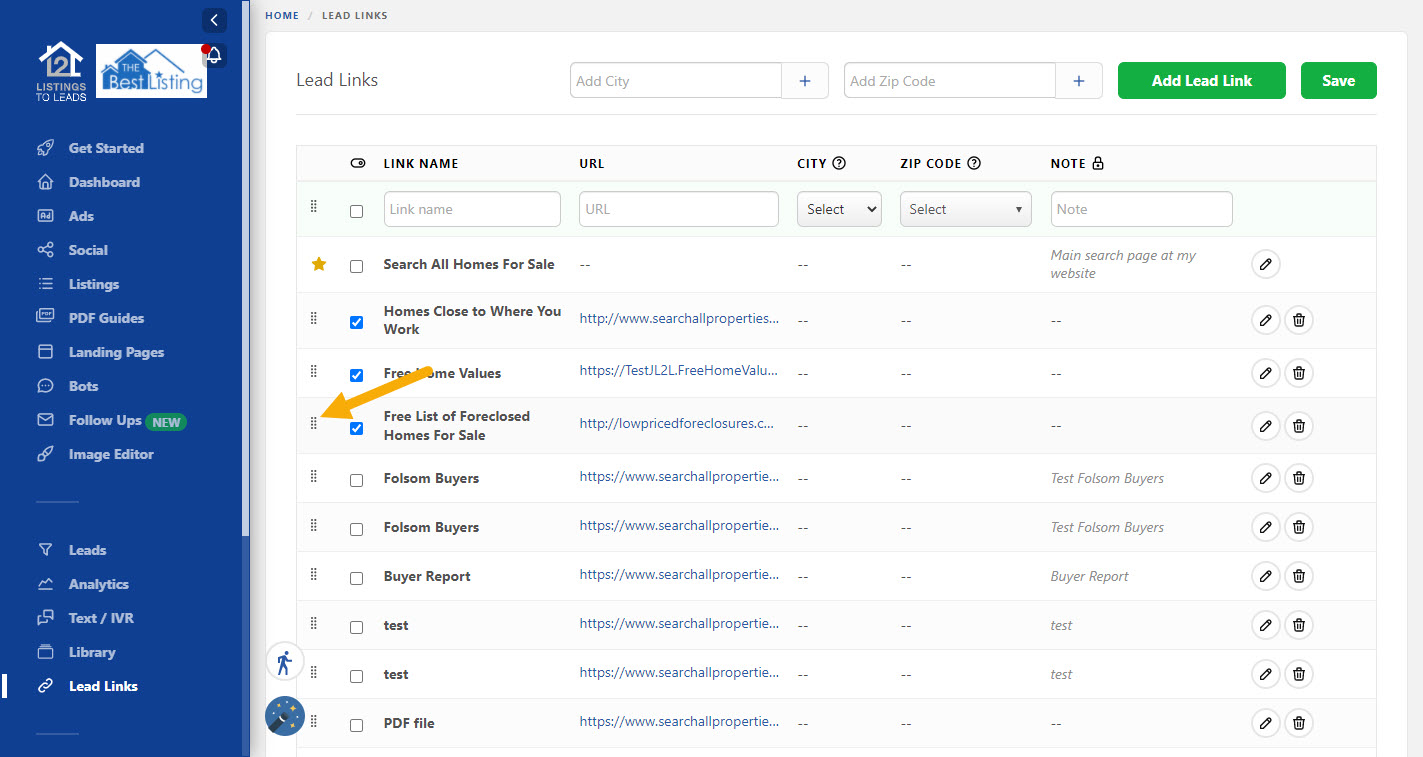
Click the 'Lead Links' tab on the left side of your account.
To add a Link you need to add a 'Link Name' > The 'URL' > and (this is optional) you can select a City or Zip Code you want that Lead Link to be connected to.
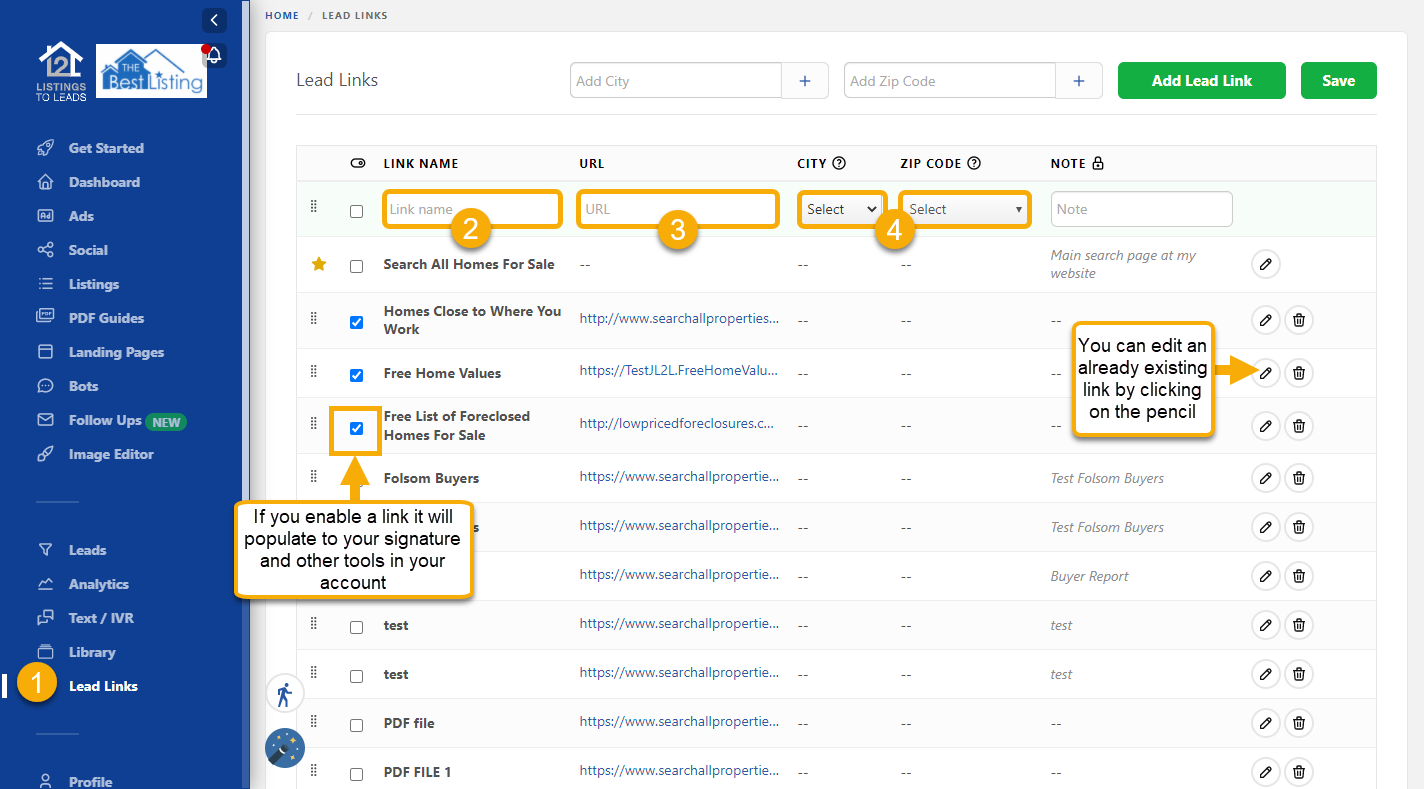
See video and screenshots below.
Watch the video below to see how to add links to your listings' marketing & lead generation tools to better engage people that do not contact you about your listing via the 'Lead Links' tab in your account!
Once a Lead Link is added to your account it will display with future listings by area per the video above.
To display new Lead Links with current listings, click 'Edit' for the listing.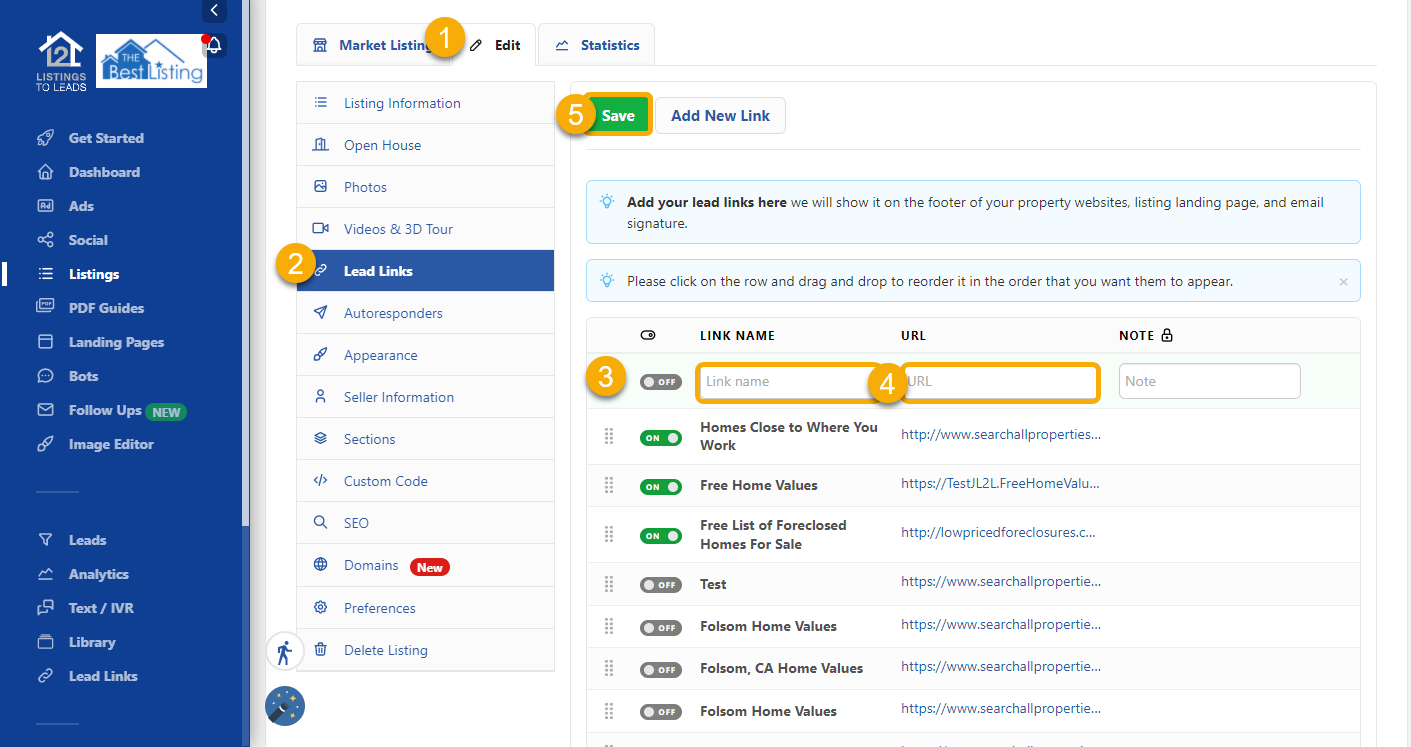
Then click 'Lead Links' (left column screenshot below) and check the links you want to add, click, hold and drag to reorder and click 'Save'.