
Click the 'Listings' tab ➤ Click the 'Edit' icon for the listing ➤ Click 'Preferences' in the left column
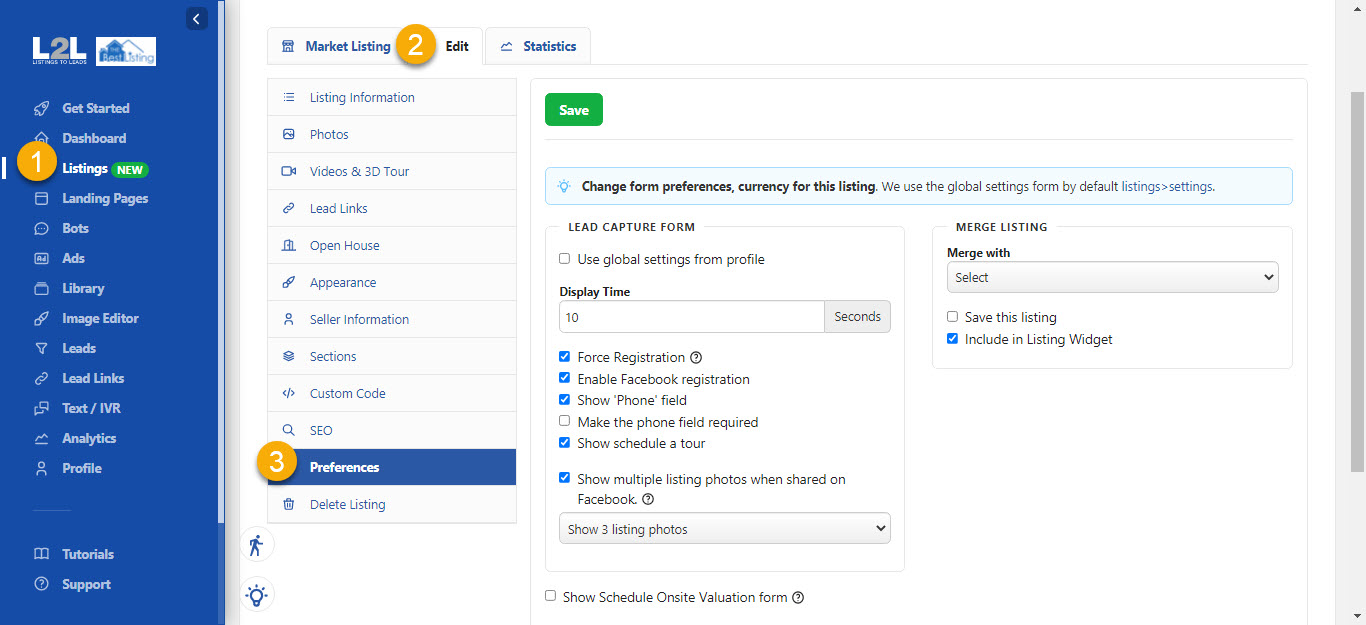
Lead Capture Form
Set the lead capture form for your listing's marketing and lead generation tools here.
Display Time
Set the time delay for the Follow This Home form on the Single Property Websites and Virtual Tours.
Force Registration
This does not allow the viewer to bypass the Follow This Home Lead Form.
Enable Facebook Registration
This uses the Facebook lead form which captures the Facebook name and email of the person clicking the lead form button.
Show 'Phone' field
This will display the form field for the phone
Make the phone field required
This will make the phone field required.
Show Schedule a Tour
This tool will allow the lead to schedule a Tour of the house.
Click here for an in-depth review of these lead forms
(To view this link you must be a member of our Facebook Mastermind Group. If you are not, click here to get an invite.)
Merge Listings
Merge with
Merge listings you added via Create New Listing or Grab Active Listings into the listing that imported from the data feed so that you DO NOT lose any of your marketing or lead generation links AND the listing will update from the data feed!
Be sure you are in this section for the listing you added via Create or Grab.
If the listing you are trying to MERGE does not appear in the drop-down, you are at the wrong version of it.
Go to the same section in the OTHER listing and you should see the listing in that dropdown to select for merge.
Let support know if you need help and they will do this for you!
Other Options
1. When you update the status of your Listing as Just Sold the system is going to keep it available for the next 30 days to market it. In case you want to keep it for more than this time you MUST add the checkmark to the 'Save Listing' option.
2. If you want to include a Listing in the 'Listing Widget' please checkmark this option, In case you don't want to include the Listing in the widget then you need to uncheck it.
