
You need to have a Listing in your Listings section and a Listing BOT already created.
❤️ NOTE: See Video At Bottom for a Video Walk Through!
❤️ NOTE: See Video At Bottom for a Video Walk Through!
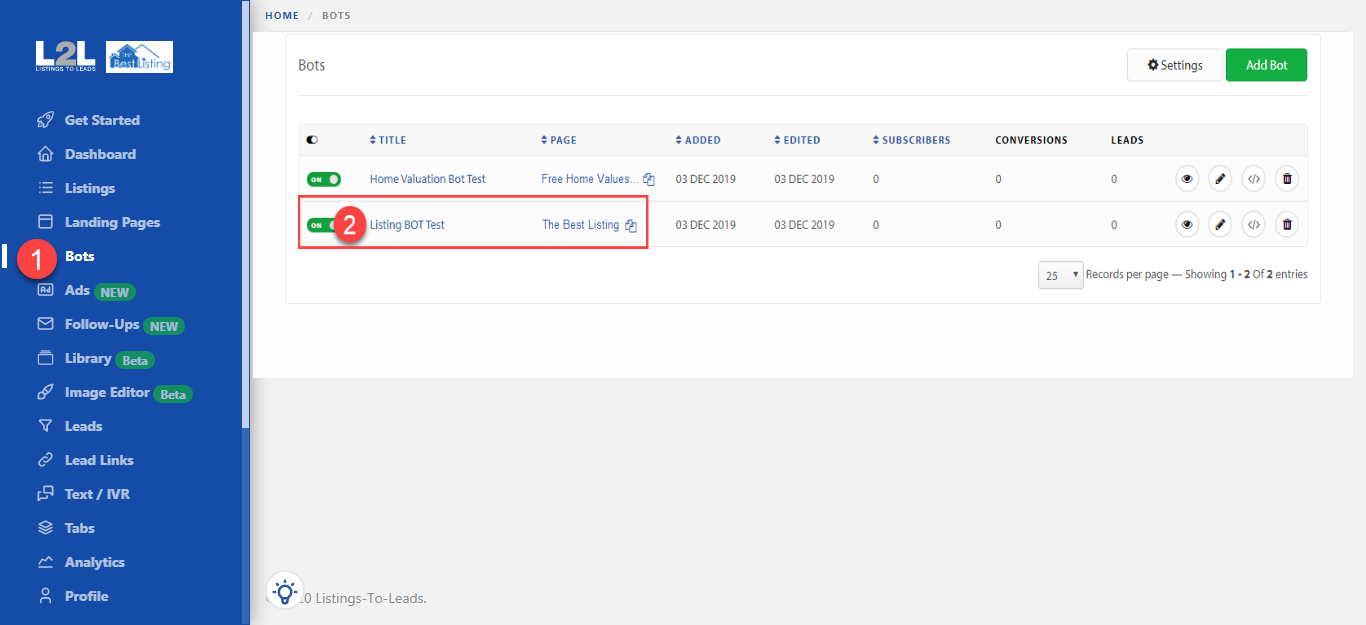
1. Go to the ‘Bots’ tab in the navigation bar.
2. Your BOTs will appear in this section, otherwise, you need to create a Listing BOT (Check our ‘How to Set Up BOTs’ tutorial).
3. Go to your Facebook Ads Manager and click the green ‘Create’ button.
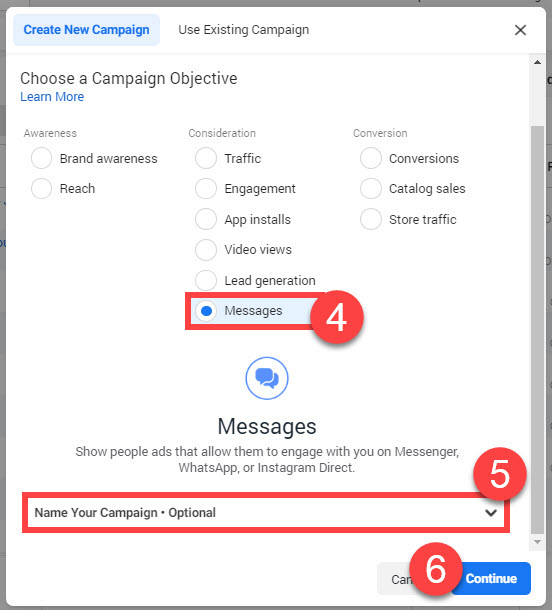
4. Select ‘Messages’ from the menu.
5. Scroll down a bit and enter the name of the campaign.
6. Click ‘Continue’.
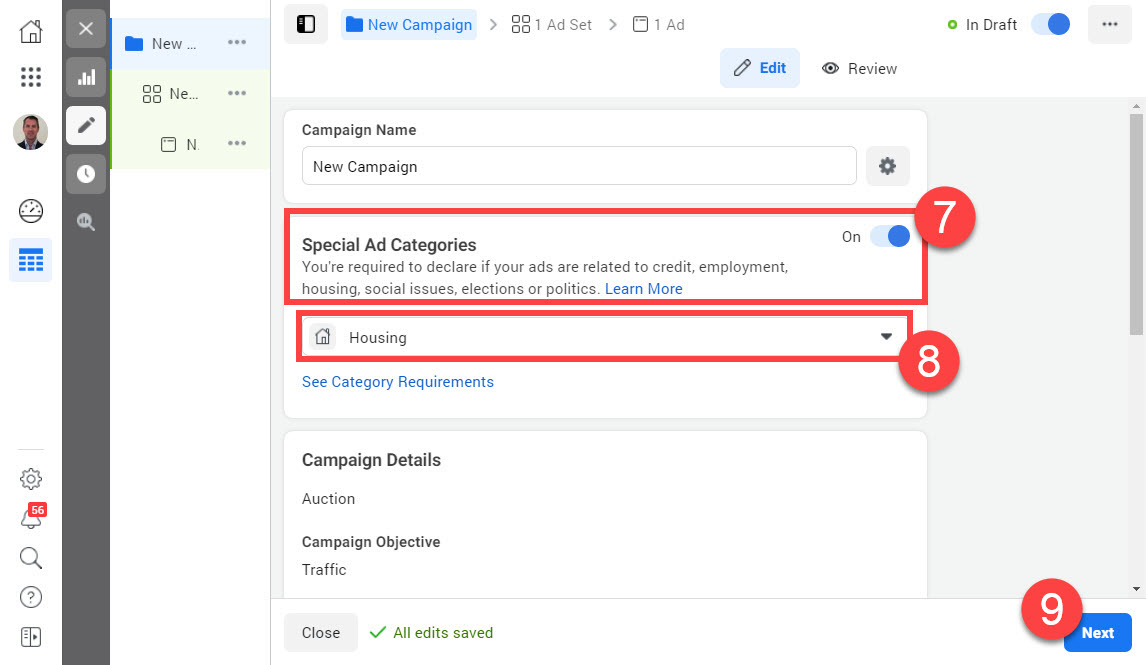
7. Turn ON the ‘Special Ad Category’ option
8. Select the ‘Housing’ option from the dropdown menu.
9. Click ‘Next’
10. Select the Facebook page that has the BOT installed.
11. Adjust the Budget and Dates as needed.

12. . Enter the Location you would like to target.
13. Add real estate interests in the Detail Targeting field (Optional).
14. Click ‘Next’
14. Click ‘Next’

16. Add an Ad description and Headline.

17. Go to the ‘Messenger Template’ section and click ‘Create’.

18. A popup will appear in which you will be able to create an automated message. Select the format you would like to use. NOTE: We recommend using the ‘Text & Image’ option.
19. Add a Greeting message.
20. Upload the image of the listing and add a title (optional).
20. Upload the image of the listing and add a title (optional).

21. Scroll down until the ‘Customer Actions’ section, and select ‘Quick Replies’ from the dropdown menu.
22. Enter a quick reply in the Reply Text field.
23. Select the ‘Connect Your Bot’ option from the dropdown menu and enter ‘Listing’ in the Bot Payload field.
23. Select the ‘Connect Your Bot’ option from the dropdown menu and enter ‘Listing’ in the Bot Payload field.

24. Feel free to click ‘Preview in Messenger’ button to test the BOT (A message will be sent to your Facebook account. You can test the conversation within Messenger) or click ‘Save and Finish’

25. Click ‘Finish’. Your ad will be published once Facebook approves it.

🎯 MESSENGER SET UP VERSION 2
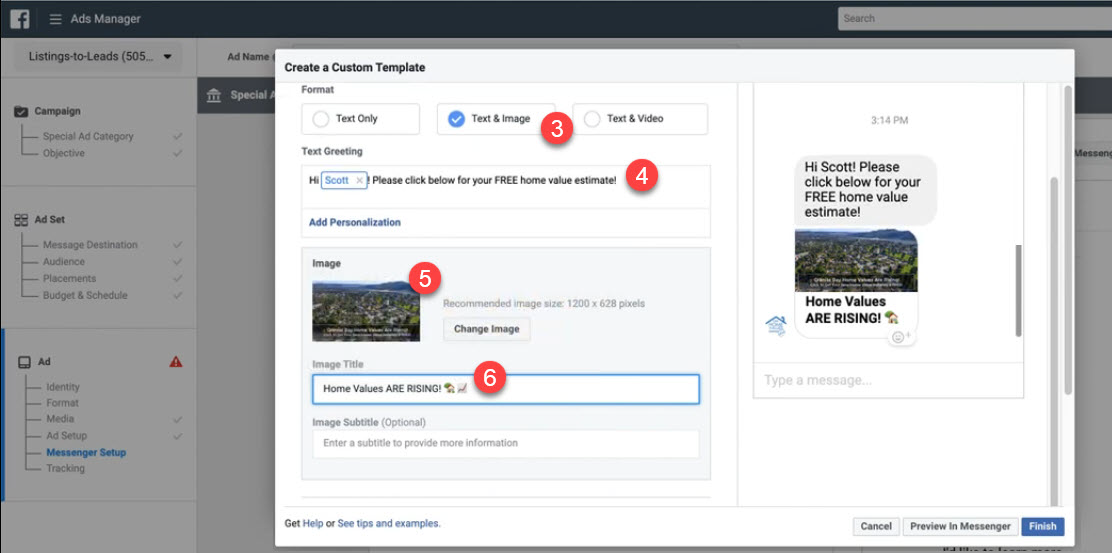
1. Click 'Custom' under Messenger Setup.2. Click 'Create Message'
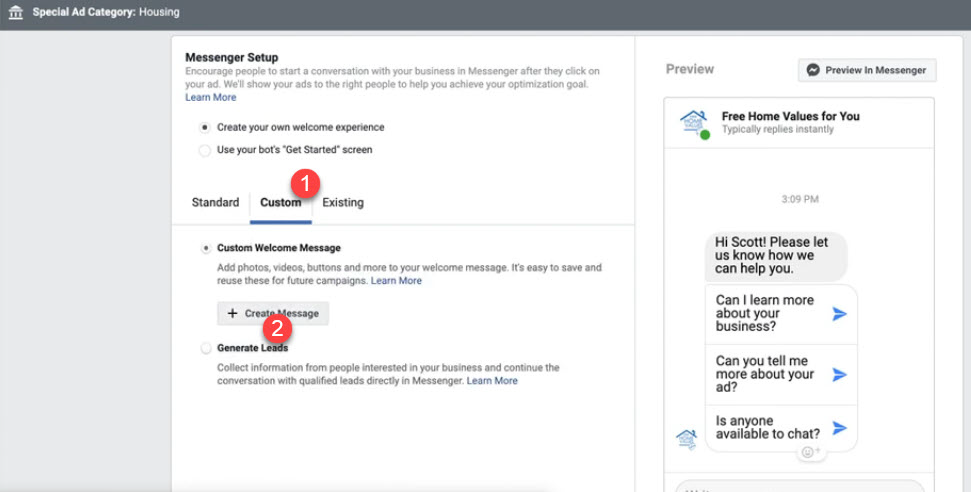
3. Select appropriate Format under 'Welcome Message'
4. Edit 'Text Greeting'
5. Upload Image or Video as appropriate
6. Enter Image Title
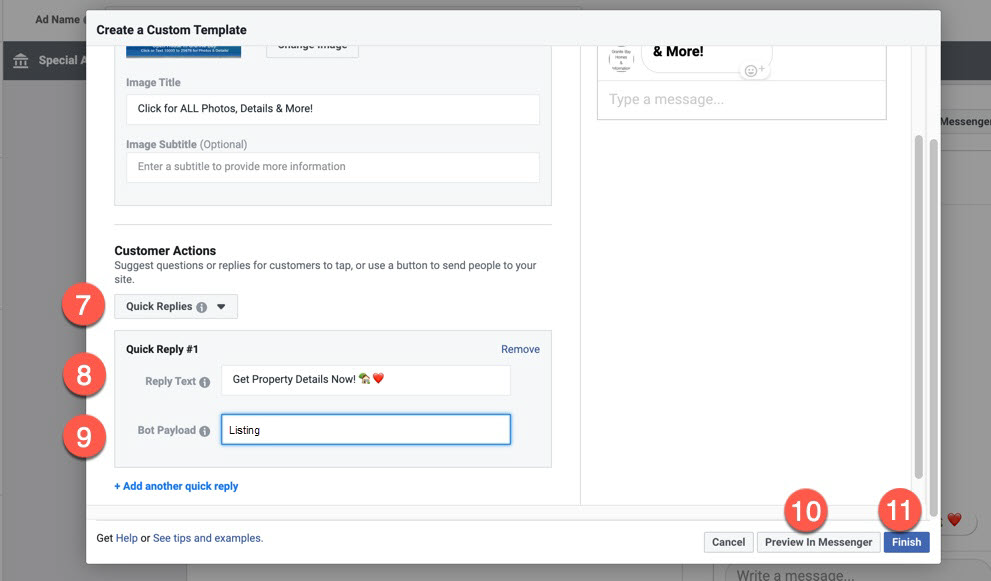
7. Select 'Quick Replies' from drop down menu under Customer Actions
8. Edit 'Quick Reply #1'
9. Click 'Connect BOT' and enter 'Listing' in the Bot Payload form field
10. Click 'Preview in Messenger' (optional if you want to test it)
11. Click 'FINISH'
12. Click 'CONFIRM' and your ad will publish after the standard Facebook review / approval.
In the video below please not that in min 11:55 Scott added the word "buyer" in the field, DO NOT add buyer but add "Listing" instead.